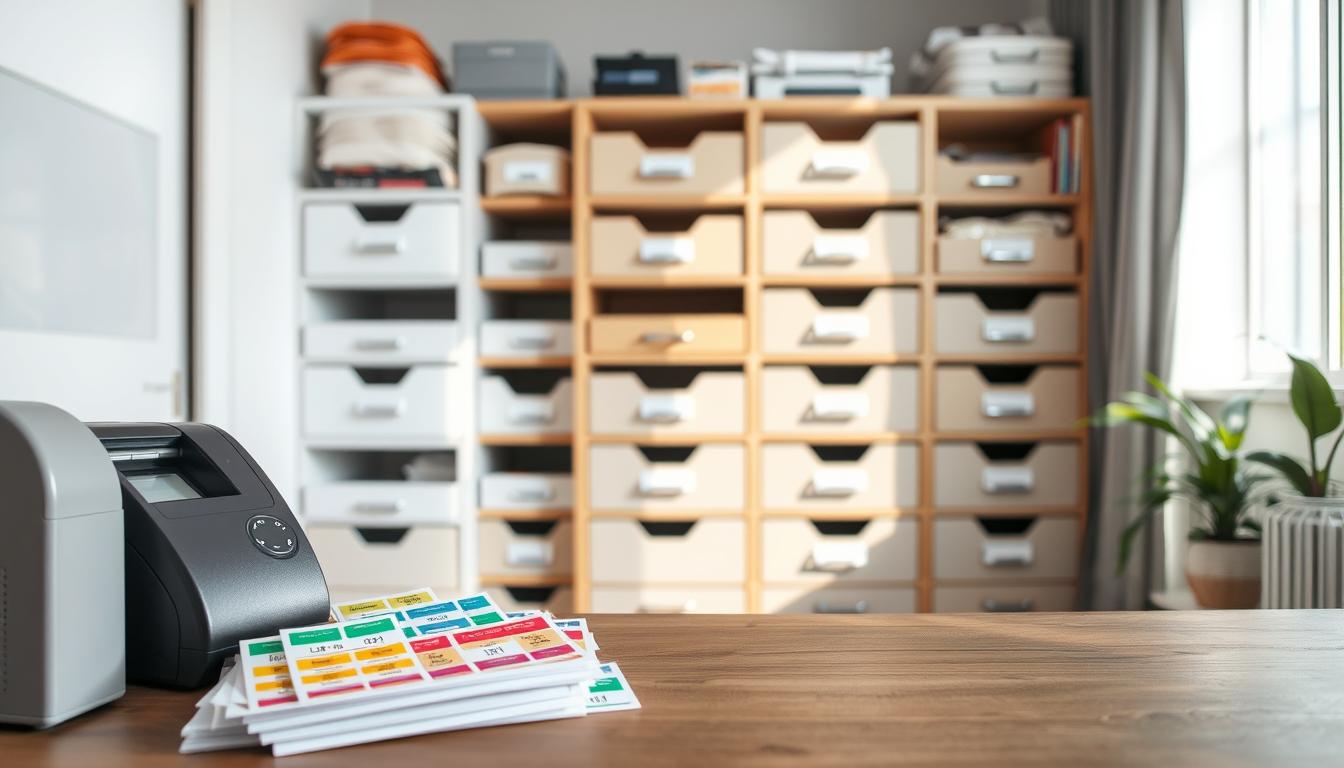

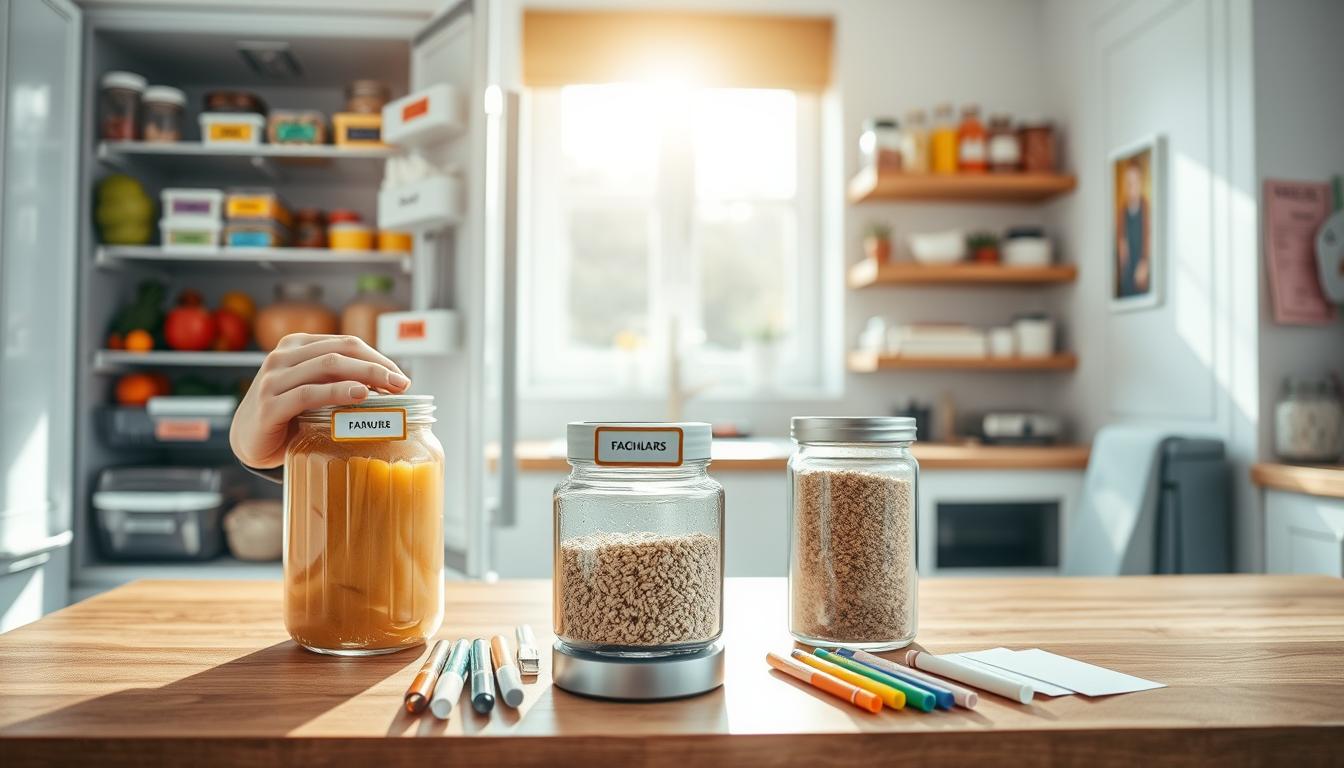
Updating your labels helps keep shopping simple as stores, diets, and household needs shift. Small, intentional edits mean the system stays easy to scan and reliable when you shop.
Start by spotting what changed in routine, then decide which items to track. Next, edit the label fields so nothing important breaks and nothing becomes cluttered.
Practical payoff: when a label matches real routines, you spend less time searching or second-guessing items. The same steps work whether you use an app, a spreadsheet, or a shared list at home.
In the rest of this guide you will learn what each label should track, how to safely edit or remove entries, and how to speed updates with batch edits and careful field-level work.
Key takeaways: keep changes small, track only what matters, and follow a three-step flow: identify, decide, update.
When Your Grocery Habits Change, What Your Labels Should Track
Notice small frictions first: repeated scrolling, frequent “misc” picks, or many one-off tags are clear change signals. These tell you the system no longer fits how you shop.
Spot the signal: if you add single-use tags, stop touching older tags, or switch stores or diets, mark those points for action.

Choose a consistent name format
Pick a simple, repeatable convention and stick to it. Use lowercase, prefer underscores or hyphens, and keep the name short so it reads fast on mobile.
Examples that scan well: diet_gluten_free, store_costco, timing_weeknight.
Decide what belongs where
Use a label for quick, often-filtered tags. Put broad categories like Produce or Dairy in a section. Save brand or size as a field. Group whole trips as a list.
- Label = frequent filter or tag you apply.
- Section = natural home for an item (Produce, Dairy).
- Field = item-specific information (brand, size).
- List = trip or collection type (Costco run).
Ready-to-update checklist: identify change signals, pick the name format, assign responsibilities for each label, and confirm which list or section items belong to before you make edits.
Updating your labels Without Breaking Your System
When routines shift, make small label edits that protect how your system works. Start with a quick test: will a new label get used repeatedly for at least a few weeks? If not, keep it as a note instead.

Add a new label for a new routine or dietary shift
Add a new label only when the change is persistent. Examples: diet_low_sodium or store_trader_joes. Avoid duplicates by searching existing names first.
Edit a label name and color so it stays easy to scan
Rename when meaning is the same but wording can be clearer. Match the new name to your naming rules and change color to group similar tags for instant visual scanning.
Update information carefully using “only what changed” edits
Make the smallest edit that fixes the issue. Changing one field at a time lowers the risk of confusion across items that already use that label.
Disable or delete labels thoughtfully
- Disable seasonal labels like holiday_baking so you can re-enable them later.
- Delete labels you never use, but confirm they aren’t attached to active items first.
- For shared labels, agree on a final name before renaming or deleting; changes apply across collaborative lists.
Make Label Changes Faster with Batch Updates and Clear Fields
When several tags need changes at once, treat the work as a single focused session to save time and mistakes. Plan a short checklist: which labels change, the target name or color, and where they appear in any shared list.
Use a batch update mindset to reduce repeated steps. Batch requests are applied in order and mirror Google Drive’s behavior: if one fails, none apply. That atomic behavior protects the system from half-finished edits.
Apply atomic updates and field masks
Update only the specific field you intend to change. Many systems require a FieldMask to list exact paths; avoid wildcard changes that can reset other settings.
Drafts, publish, and IDs
Successful edits often create a draft revision you must publish before people see the change. Keep the label ID or resource name handy so you update the correct item when names are similar.
- Test immediately: filter by the updated label and confirm behavior.
- Work in focused batches to cut turnaround time and troubleshooting.
- Record IDs and the minimal field paths you changed for future reference.
Conclusion
Treat labels as flexible tools that change as your shopping habits shift.
Keep the core approach simple: spot habit shifts, pick a clear name format, then apply small edits—add, rename and recolor, disable, or delete—so nothing becomes confusing.
When you share lists, agree on changes first. Shared edits affect other people’s active items, so coordination avoids surprises.
Set a light maintenance rhythm. A quick monthly or quarterly review prevents clutter and saves hours later.
Success is simple: you scan the list fast, apply the right label without hesitation, and trust that each tag matches how you shop today.